
Seo success with Wix
How to Configure SEO on Wix: A Complete Setup Guide for Website Owners
If your site is built with with this popular page builder, you can achieve some excellent Seo success with Wix. It has come a long way from its early reputation as an SEO-unfriendly platform. In 2026, it offers a genuinely competitive set of built-in tools — custom title tags, structured data, automatic sitemaps, server-side rendering, and even AI-assisted content generation. The catch is that almost none of it works well by default. Wix gives you the controls; you still have to use them. Here’s a practical, step-by-step walkthrough of how to configure your site to achieve Seo success with Wix.
1. Run the SEO Setup Checklist first
Before touching individual pages, start with Wix’s built-in SEO Setup Checklist (sometimes still called the SEO Wiz), found under Marketing & SEO in your dashboard. You’ll answer a few questions — your business name, whether you serve customers locally or online, and three keywords describing what you offer — and Wix generates a personalised checklist covering homepage setup, content basics, and technical foundations like connecting Google Search Console. It won’t cover blog posts, stores, or bookings pages, but it’s a solid foundation step and worth completing in full, since steps left incomplete stay flagged until you finish them.
2. Customise the SEO Panel on every page
This is the part most Wix owners skip, and it’s the part that matters most. Every page — static pages, blog posts, products, categories — has its own SEO Panel, accessible from Page Settings in the Editor or from the relevant dashboard section for dynamic content. Inside it, set:
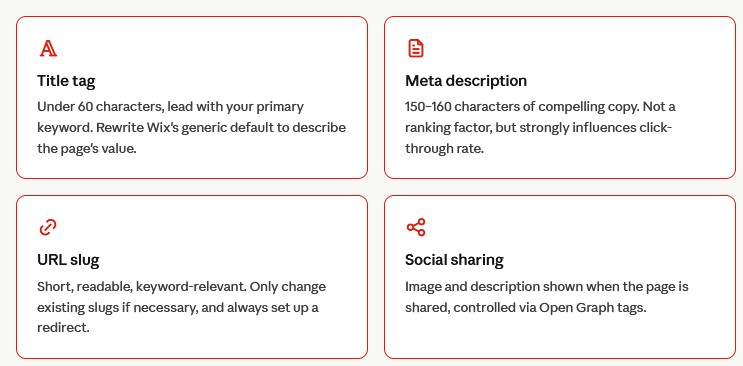
Wix’s AI Text Creator can draft titles and descriptions for you, which is a reasonable starting point — but treat it as a draft, not a finished product. Review and tighten the language yourself.
3. Connect Google Search Console and submit your sitemap
Wix automatically generates an XML sitemap, broken up by page type (products, blog posts, etc.), and resubmits a fresh one once any single sitemap file reaches its URL limit. But it only gets submitted to Google once you verify ownership. Go to the SEO Tools section of your dashboard, find the verification centre, and connect Google Search Console (Bing, Yandex, Naver, and Pinterest are also supported). Once connected, you’ll get indexing data, query performance, and crawl reports pulled directly into your Wix dashboard — genuinely useful for monitoring without leaving the platform.
4. Add alt text to every image
Alt text remains one of the most commonly skipped basics. Beyond accessibility, it helps Wix’s automatically generated image sitemaps perform in visual search. Go through product photos, blog images, and homepage graphics, and write descriptive alt text for each one rather than leaving the field blank or stuffed with keywords.
5. Set up structured data (schema markup)
Wix applies some structured data automatically, but you can — and should — go further. In the Advanced SEO tab of the SEO Panel, you can add JSON-LD structured data manually, and Wix supports multiple schema instances per page. For a local business, add LocalBusiness schema; for blog content, Article schema; for e-commerce, Product schema. Wix also offers bulk “Edit by Page Type” tools so you’re not doing this one page at a time across hundreds of pages. Always validate new markup with Google’s Rich Results Test after adding it.
6. Handle canonical tags and redirects properly
Wix self-references canonical tags by default, which is the right call for most pages. If you have near-duplicate content (a product available in multiple categories, for example), you can manually set the canonical URL in the Advanced SEO tab. Whenever you change a URL slug, use the built-in URL Redirect Manager to create a 301 redirect — you can do this individually or in bulk via CSV import for larger restructures, avoiding broken inbound links and lost ranking signals.
7. Don’t ignore site speed
Wix’s performance has genuinely improved — server-side rendering, lazy loading, and CDN delivery are on by default — but a poorly built site can still load slowly. Compress images before uploading rather than relying solely on Wix’s automatic WebP conversion, limit heavy animations and parallax effects, and remove third-party apps you’re not actively using. Each added app brings its own JavaScript weight.
8. Set up local SEO if you have a physical presence
If you serve customers from a physical location, connect your Google Business Profile directly from the Wix dashboard. This lets you manage hours, service areas, and reviews, and supports features like “Reserve with Google” for direct bookings from search results.
9. Build internal links and add blog content
Wix’s blogging tools are functional, if basic compared with WordPress. Regular blog content targeting relevant keywords gives you more indexable pages and more opportunities to link between related pages on your site — supporting both crawlability and topical relevance.
Common mistakes to avoid
- Leaving every page on Wix’s auto-generated title and meta description
- Skipping alt text on product or blog images
- Never connecting Google Search Console, so changes go unmonitored
- Changing URL slugs without setting up a redirect
- Installing too many third-party apps, slowing the site down
Final thought
Wix’s SEO toolkit in 2026 is more than capable for most small and mid-sized sites — local businesses, service providers, niche e-commerce stores. The platform does the technical heavy lifting (HTTPS, sitemaps, mobile responsiveness, indexing infrastructure); the ranking improvements come from how thoroughly you configure the settings sitting on top of it. Work through the checklist above page by page, and you’ll be ahead of the majority of Wix sites still running on defaults.
